A Combination of How To and FAQ for Egnyte use cases around Sable International.
TABLE OF CONTENTS
Access Web
The website for Sable International: https://sableinternational.egnyte.com/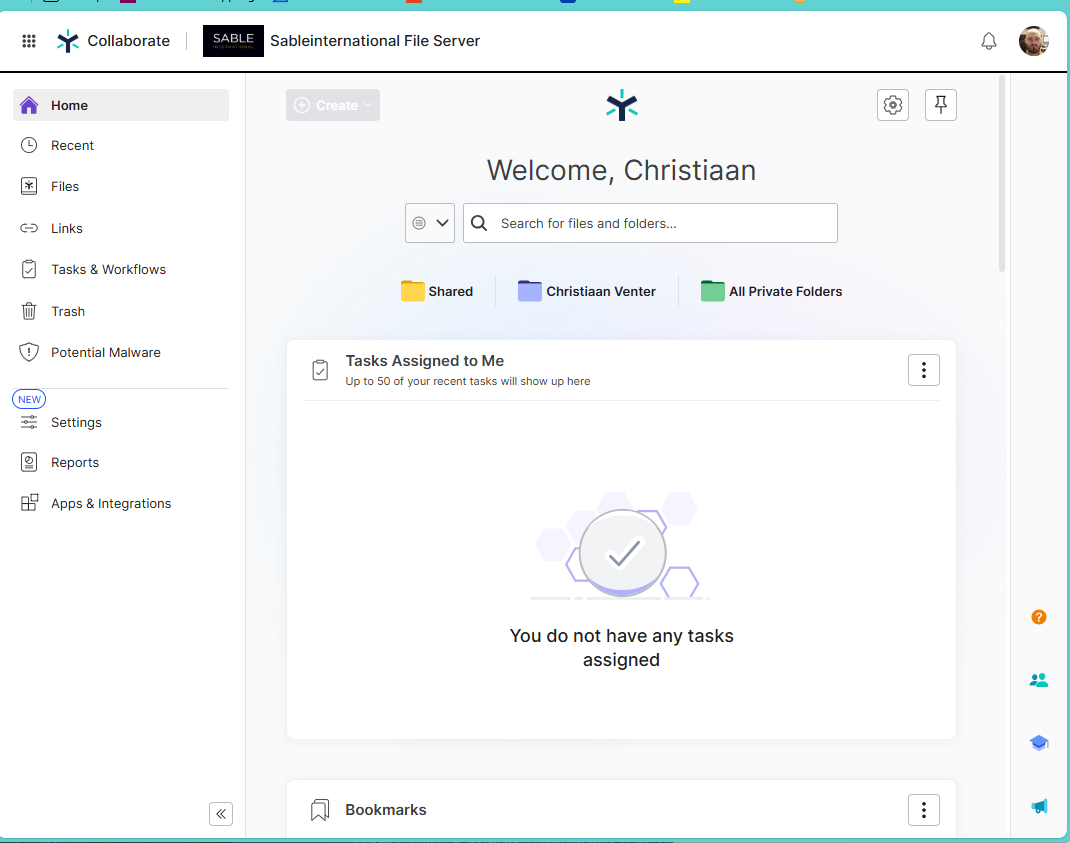
Access Desktop
Egnyte Desktop is deployed to all devices inside Microsoft Intune at Sable International.
We do not restrict you installing the Desktop app on your personal device but request you avoid doing so, or to get permission from the IT department first.
Open the Desktop App: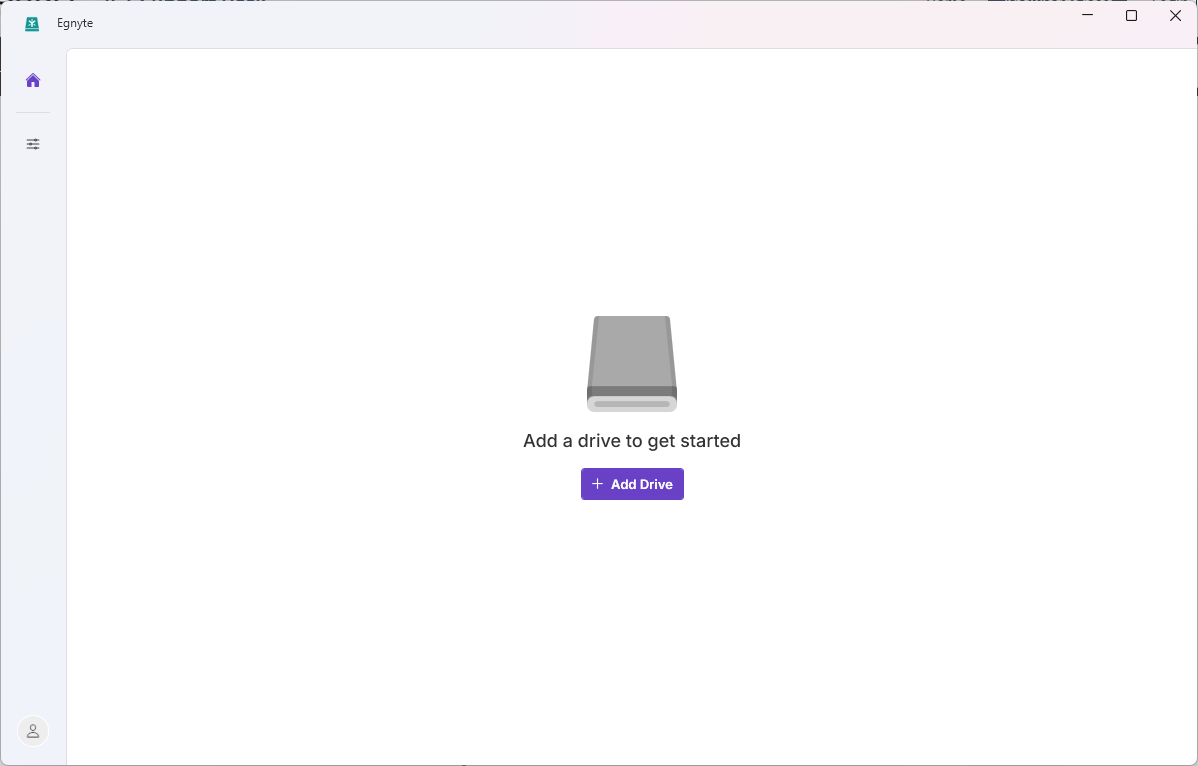
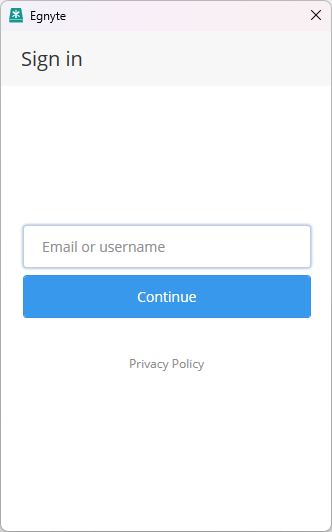
Select "Add Drive" and enter your Sable email & password. It will also require your Egnyte MFA code.
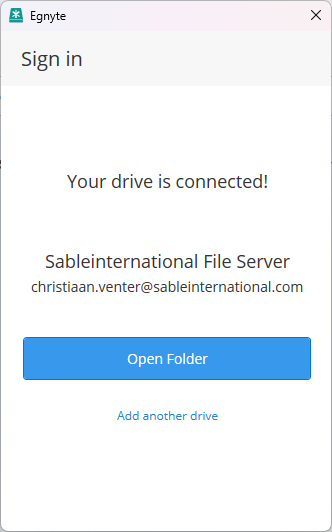
Success will have this screen show, and the Z drive in your File Explorer.
Links (Password protected)
This action is only available via the Web portal.
There are two link types available: Share Link and Upload Link
Share Link
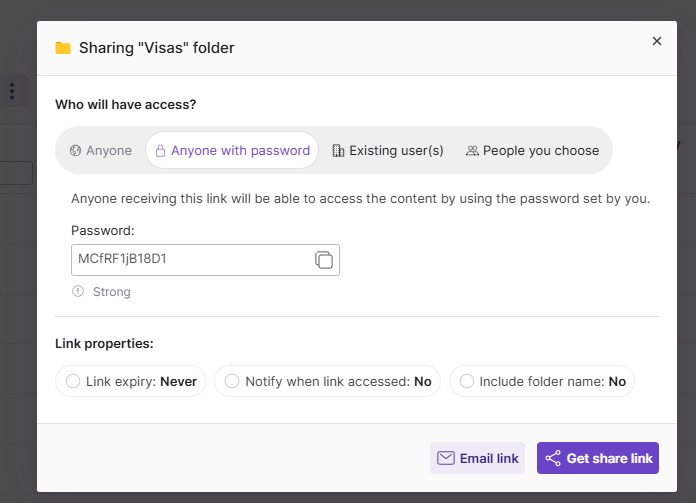
Navigate to the folder you want to share, select the Share symbol, and set the following:
- Password OR Existing Or Specific
- Copy password or Set a password
- Link access properties: Expires? Access Notification? Folder name?
*Share Link is typically reserved for people to access company resources (i.e. Forms, Media, TOS...) instead of folder access to upload documents.
Upload Link
Upload Link is used for the folder you want clients to upload data to (e.g. if typical website methods fail).
A UPLOAD LINK SHARED TO MULTIPLE CLIENTS HAS TO SEPARATE FOLDERS. NOT NEGOTIABLE.
You do not need to manually create folders for clients.
Select the 3 dots and "Create Upload Link: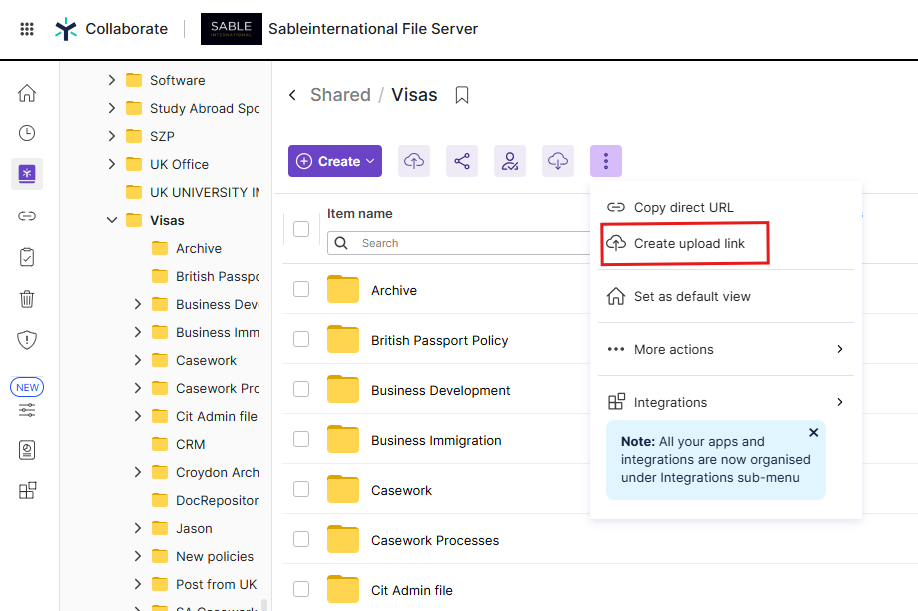
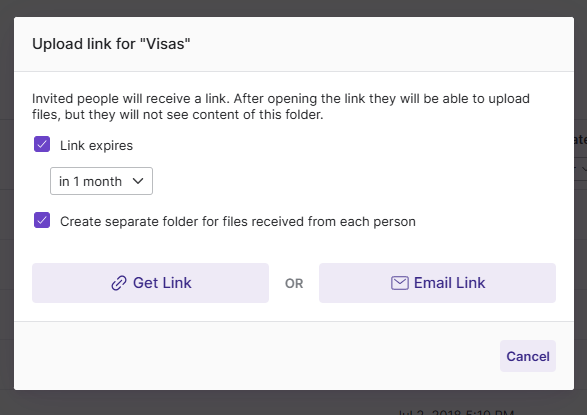
- Select if the link has to Expire and its end date
- Select "Create separate folder" so clients do not see data from anyone else
Password reset
Resetting password via the Web: https://sableinternational.egnyte.com/
- Enter your Email address
- Select "Forgot Password"
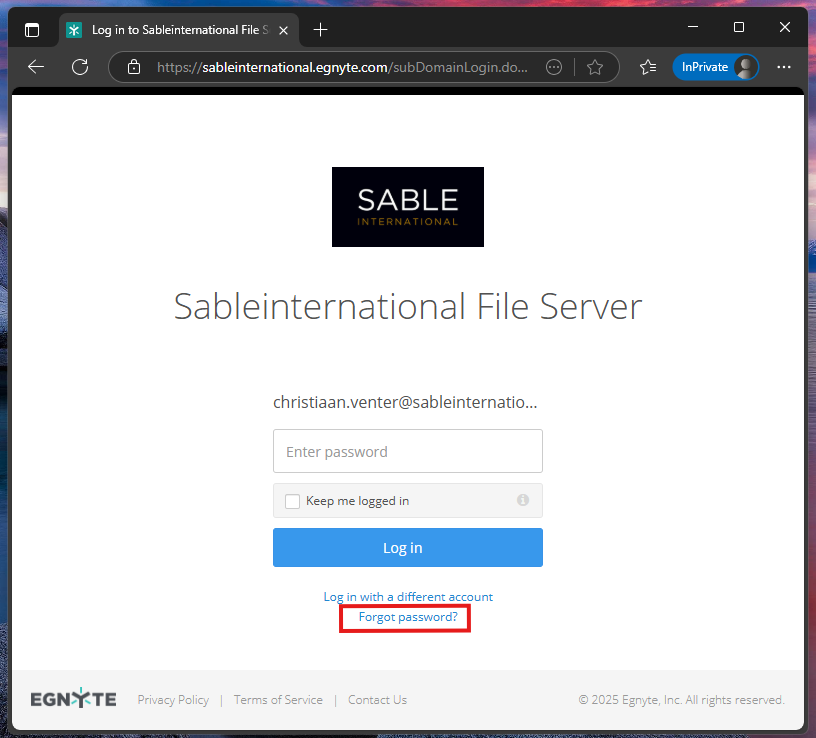
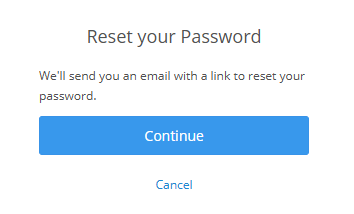
- On the next page a reset link will be sent to your email. click "Continue" and wait for the email to show in your Sable inbox.
App Version
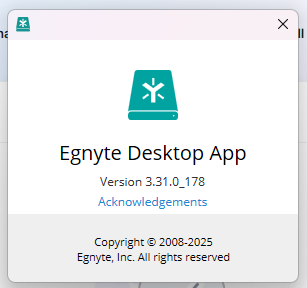
The current version deployed (as of Jan 2026) is 3.31.0
To check the version installed: Launch Egnyte.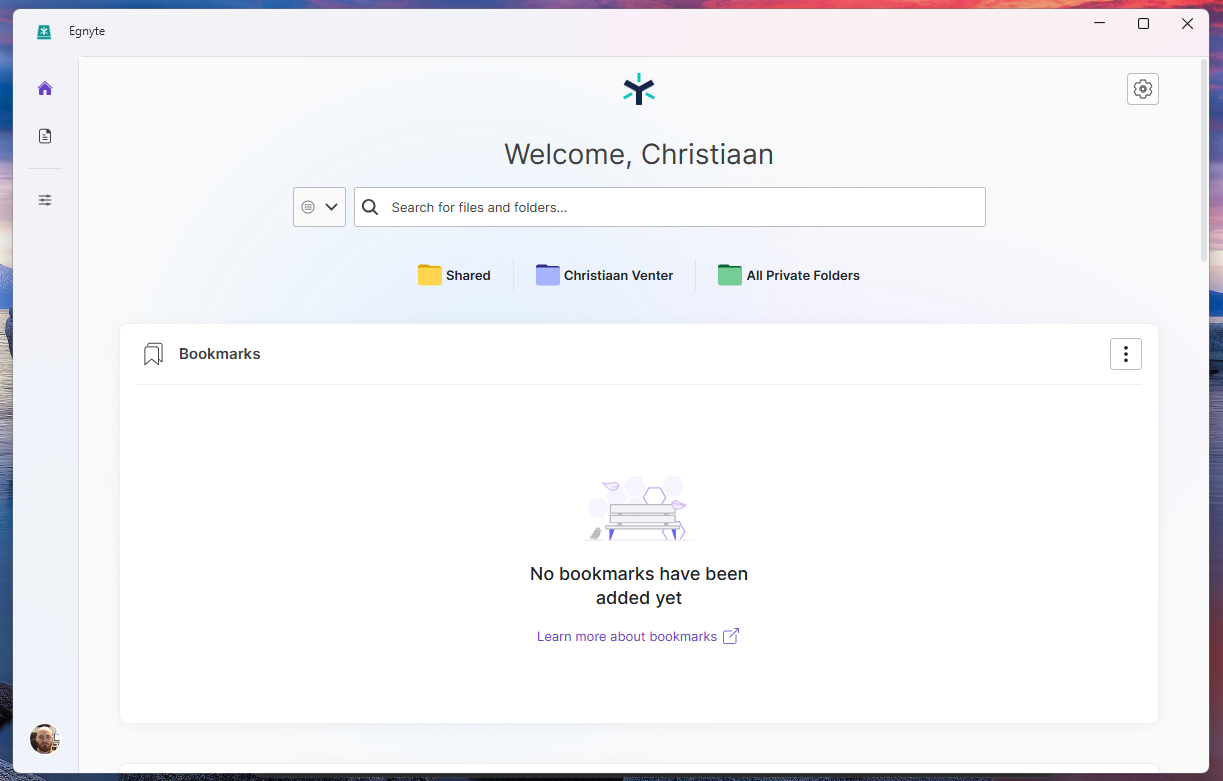
IF YOUR EGNYTE DOES NOT HAVE THIS LAYOUT IT IS OUT OF DATE, PLEASE RAISE A SUPPORT TICKET.
- Click your profile icon in the bottom left
- Select "About Egnyte Desktop App"
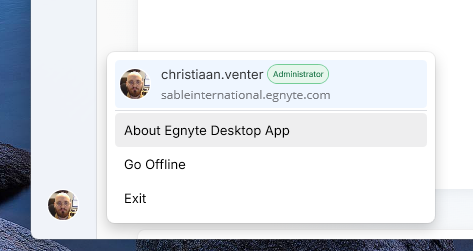
- In the new window, your Egnyte version should be listed.
Limitations:
The character limit for a file on Egnyte (including its file type i.e. .DOC, PDF, XLSX, etc) is 259 characters.
*you can upload and download files who exceed 260 characters but they cannot be modified or opened.
(Admins: see tickets/3213)
Was this article helpful?
That’s Great!
Thank you for your feedback
Sorry! We couldn't be helpful
Thank you for your feedback
Feedback sent
We appreciate your effort and will try to fix the article