Egnyte is a cloud storage service used at Sable International to store information at a scale that MS Sharepoint cannot handle for our use case.
To sign into your account for the first time you will require the following;
1. a mobile device with the Microsoft MFA app
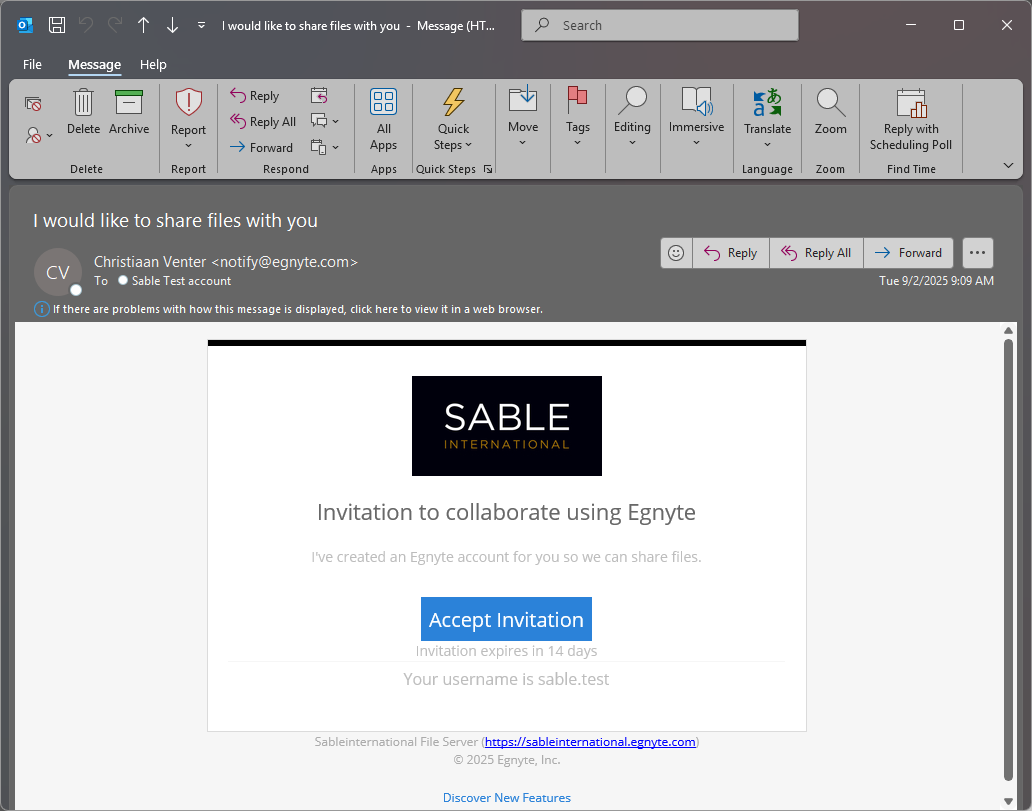
2. a Welcome email inside your Outlook from Egnyte
*If either of these are missing, please reach out to your Manager.
Welcome Email:
Click on the "Accept Invitation" button
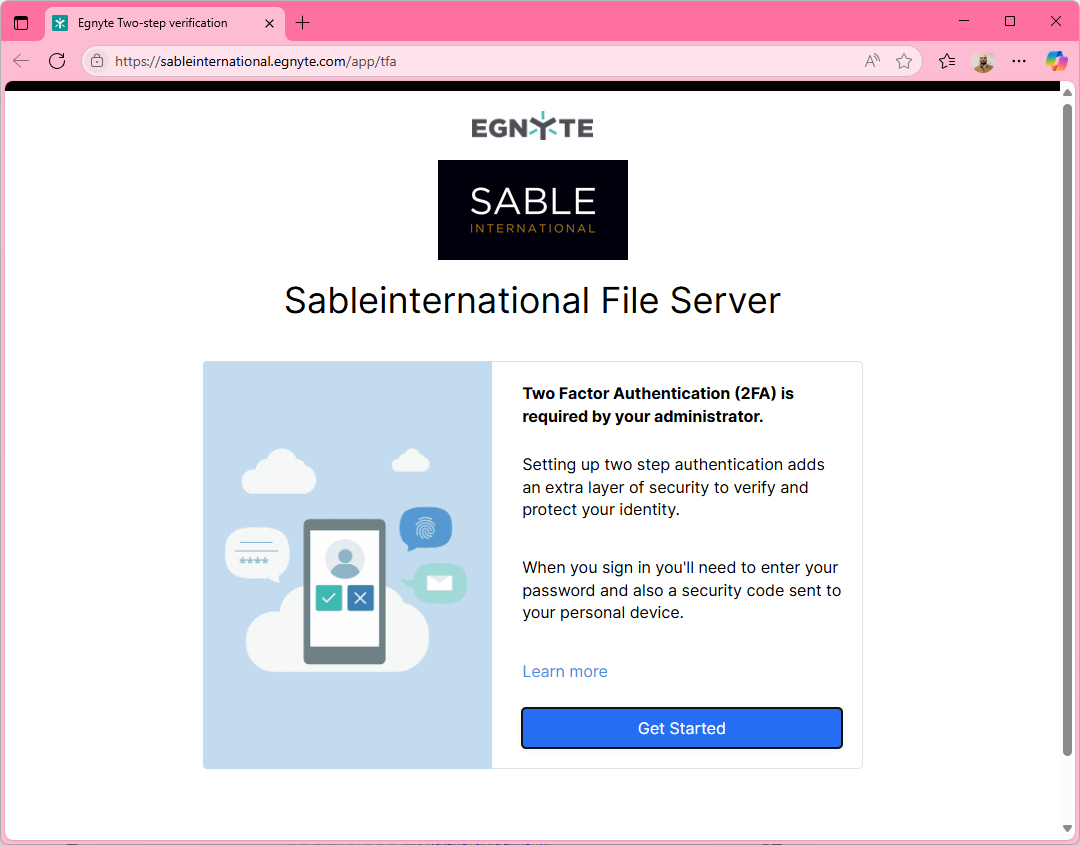
A web browser will open to set up the 2FA
Click on "Get Started"
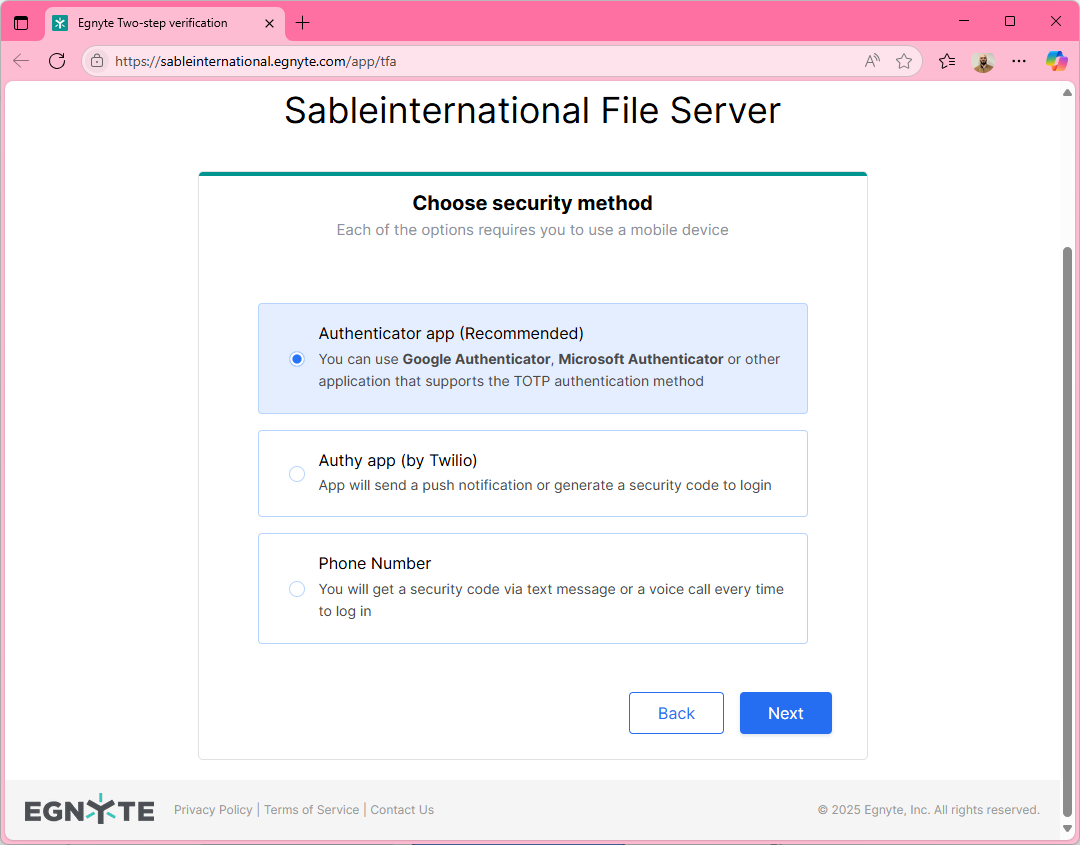
Select your MFA app (Microsoft MFA or Google Auth is recommended)
NEVER SELECT "PHONE NUMBER"
Click "Next"
Launch the app on your Phone and scan the QR code presented,
Then
Enter the generated code in the field box "Use received security code"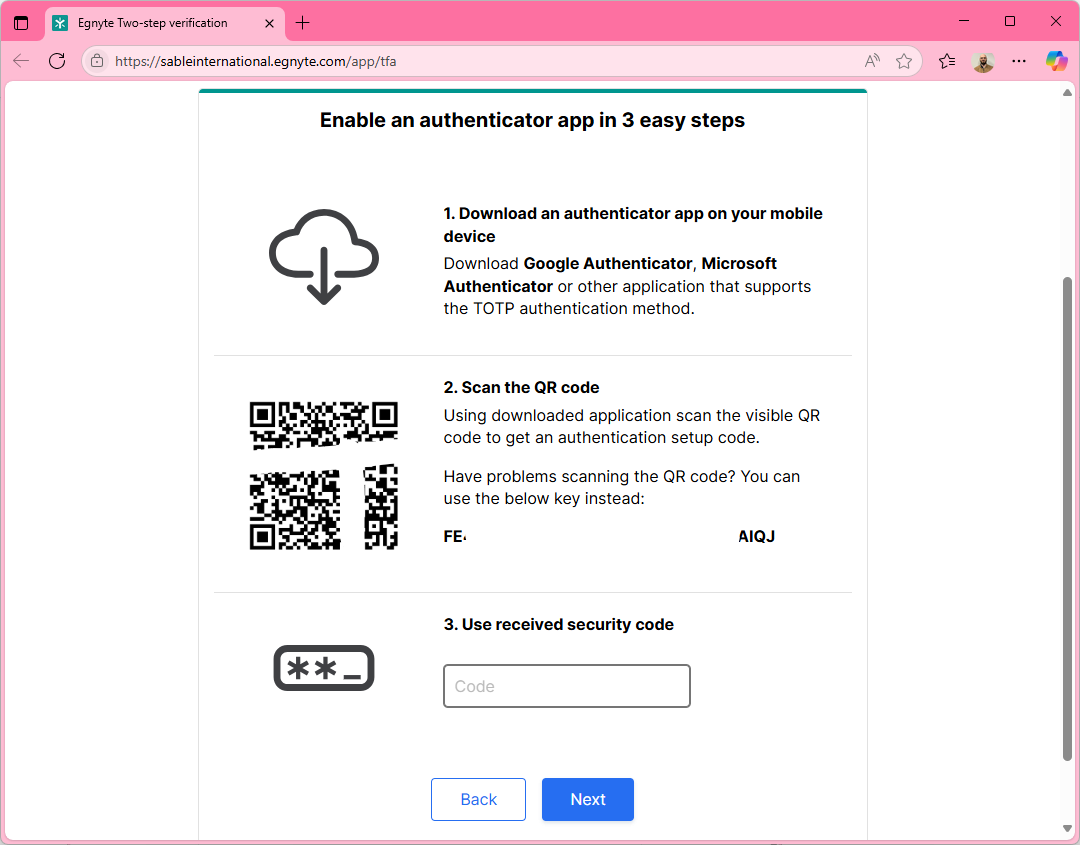
If you see this screen, you managed to set up your MFA security.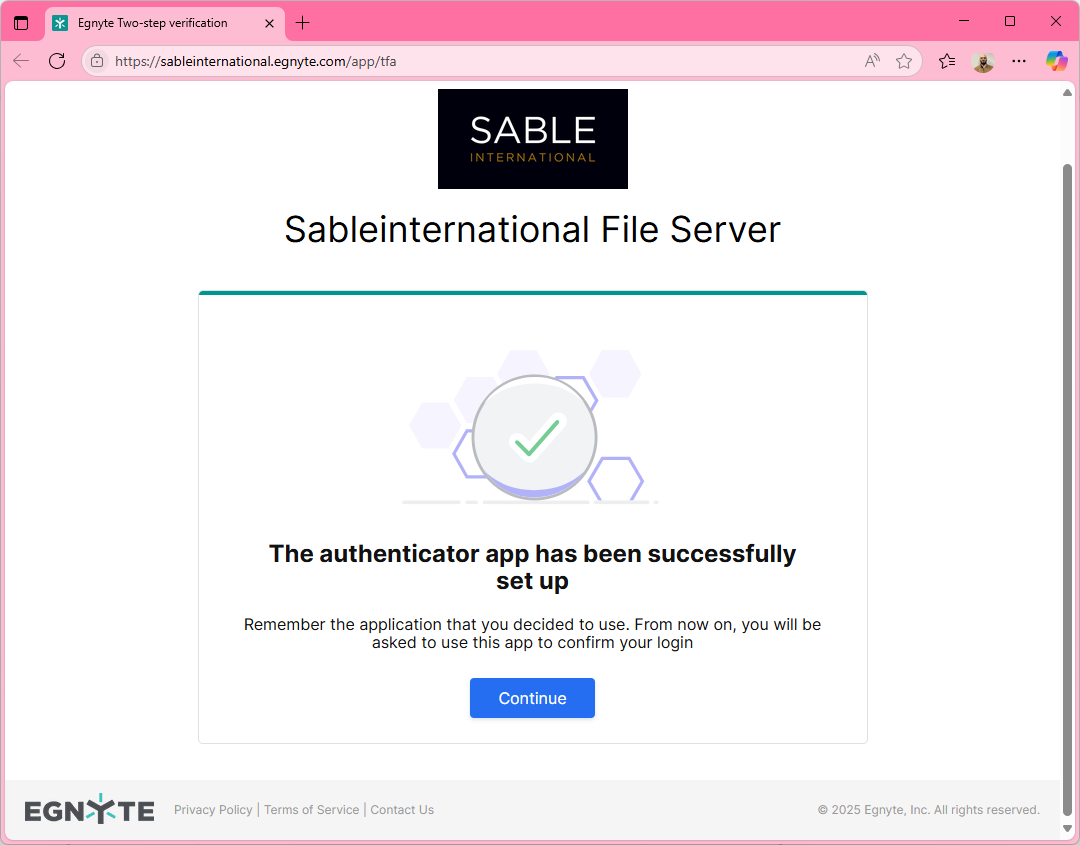
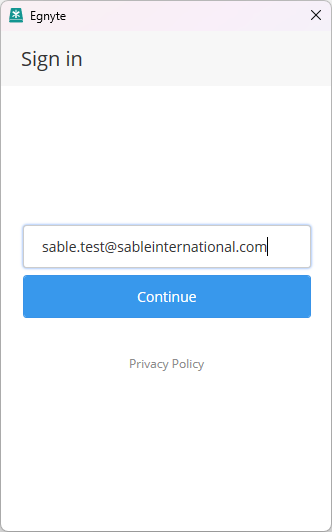
Sign into the desktop app
The Egnyte App takes a few seconds to load after you signed into your computer.
If you don't see it, manually open the App from the Windows search.
Enter your email
Was this article helpful?
That’s Great!
Thank you for your feedback
Sorry! We couldn't be helpful
Thank you for your feedback
Feedback sent
We appreciate your effort and will try to fix the article