Signatures are supplied by Marketing, apply them in the following steps;
- Launch Outlook
- Open a New Email
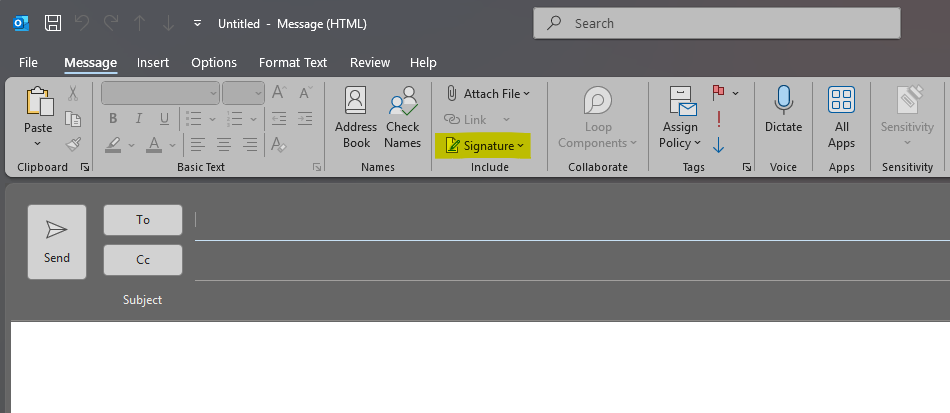
- Locate the "Signature" dropdown (Image1)
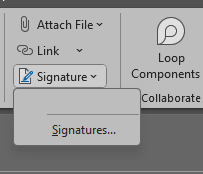
- Select "Signatures". If you have any stored signatures, see step10
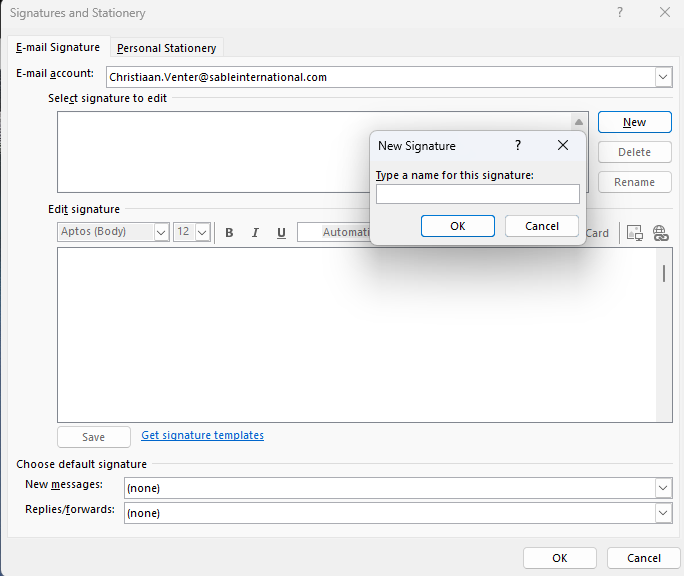
- Create a New signature and give it a name:
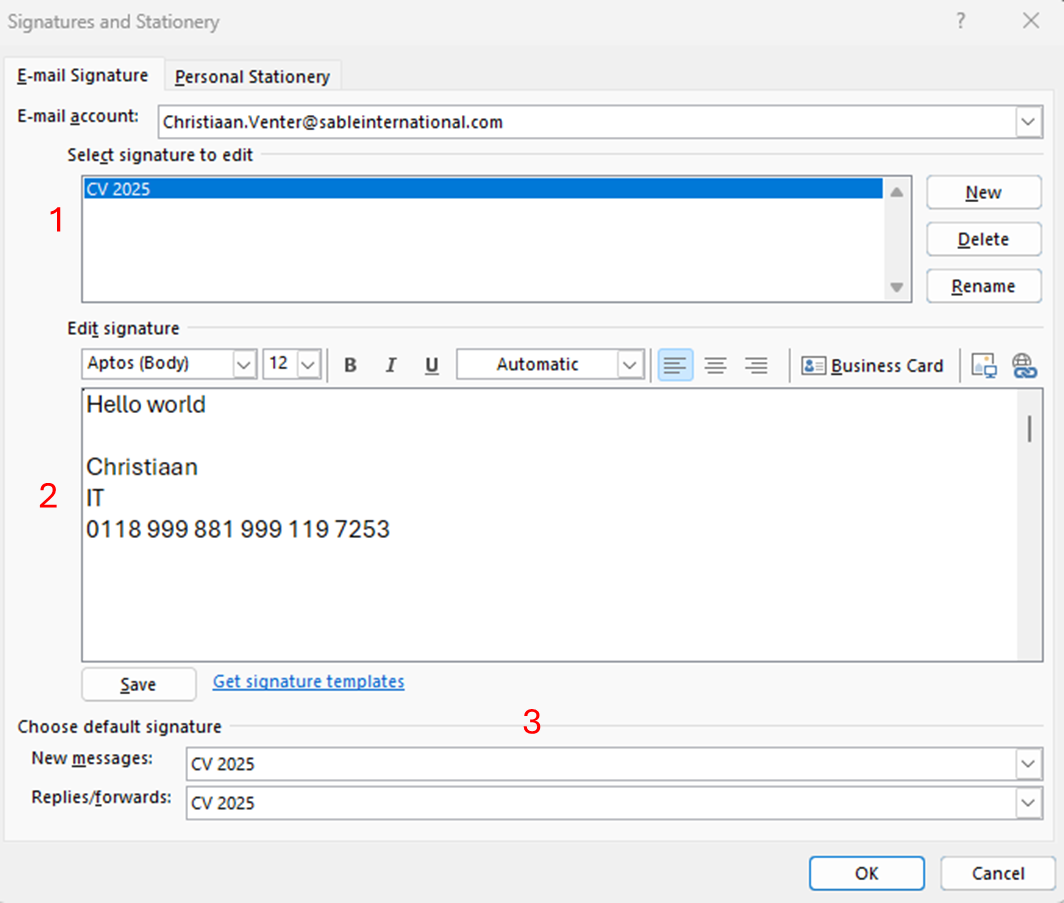
- Once it has a name you can copy-paste the signature into the box labeled "Edit Signature".
- Click "Save" whenever you make any changes.
- The Signature manager fields:
- Signature version/name
- Edit signature field
- Action per email (New/Reply)
- Click Ok and close the window on the New Email you opened.
- A new email/Reply/Forward will now have the new signature applied.
- Cont. from Step 4:
- If you have an older signature or have a different label you work with, you can change between signatures in this dropdown.
- in the Signatures field you can edit older signatures and rename them. Select the existing signature and start editing, then click "Save"
- Signature templates available below:
- 2025 version:
Was this article helpful?
That’s Great!
Thank you for your feedback
Sorry! We couldn't be helpful
Thank you for your feedback
Feedback sent
We appreciate your effort and will try to fix the article