TABLE OF CONTENTS
We have recently renamed some calendars around the Sable International Cape Town office.
Calendar/Room Names
The old names to New names
"Internal Meeting Room 2" –> "Solve (Large room near IT)"
"Internal Meeting Room 3" -> "Grow (Small room near IT)"
"Interview room" –> "Potential (reception large)"
"Client meeting 2" –> "Care (reception medium)"
If your calendar still has the old names
(picture: SA Internal Meeting Room 1 and 3, SAIMR 2 renamed)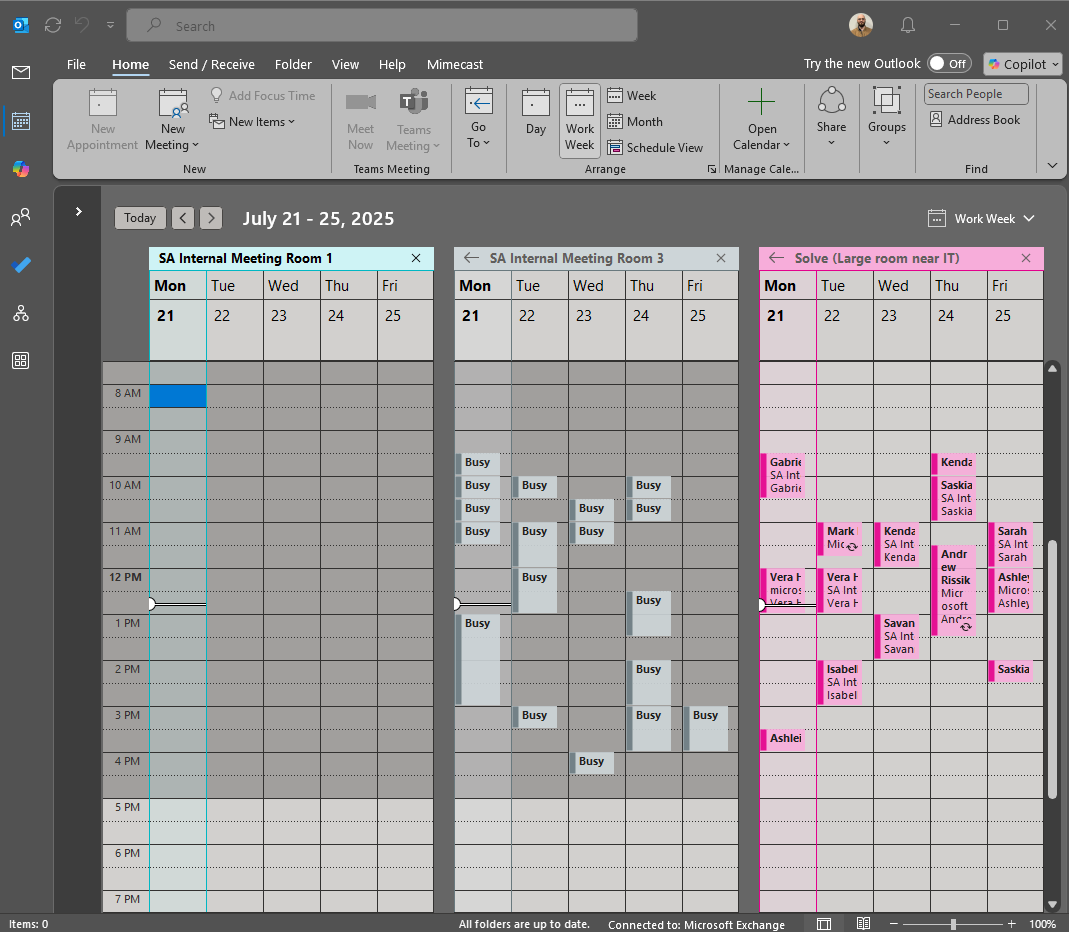
-
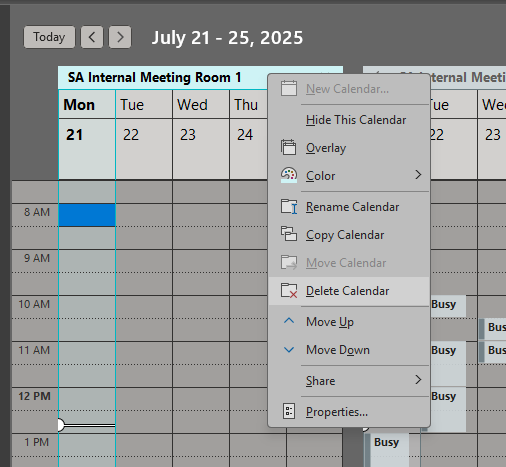
Delete the calendar
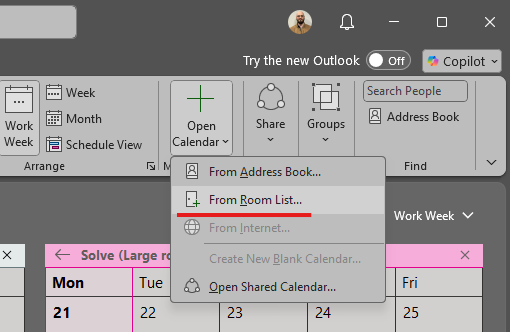
- Add new calendar: From Room List
-
Select the new calendar (double click to add to Room list)
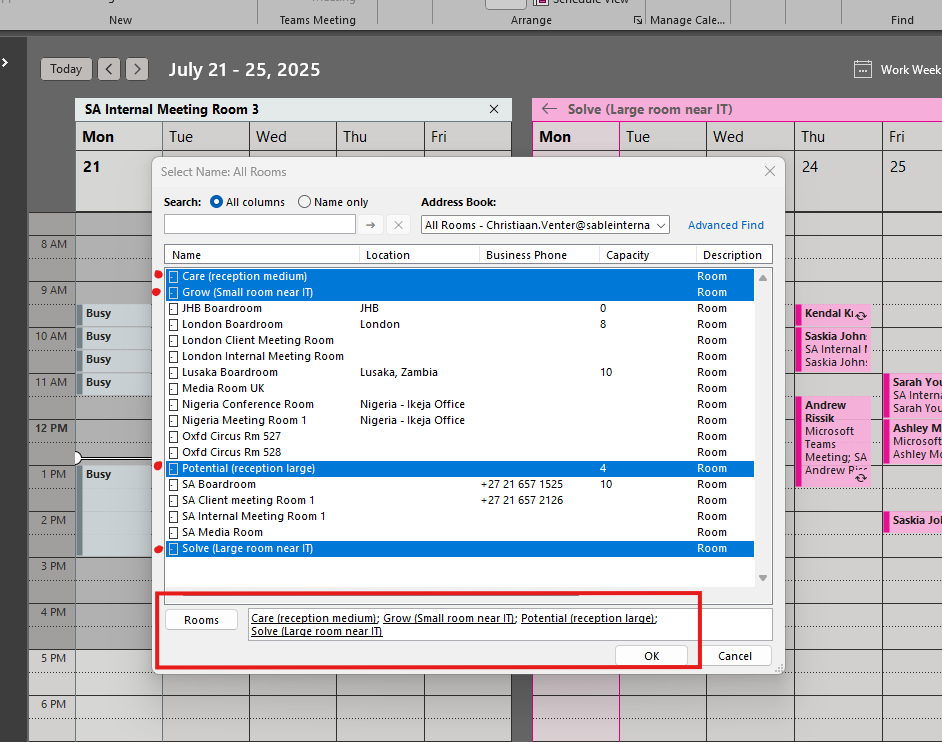
-
Done: Your updated calendars will display as normal.
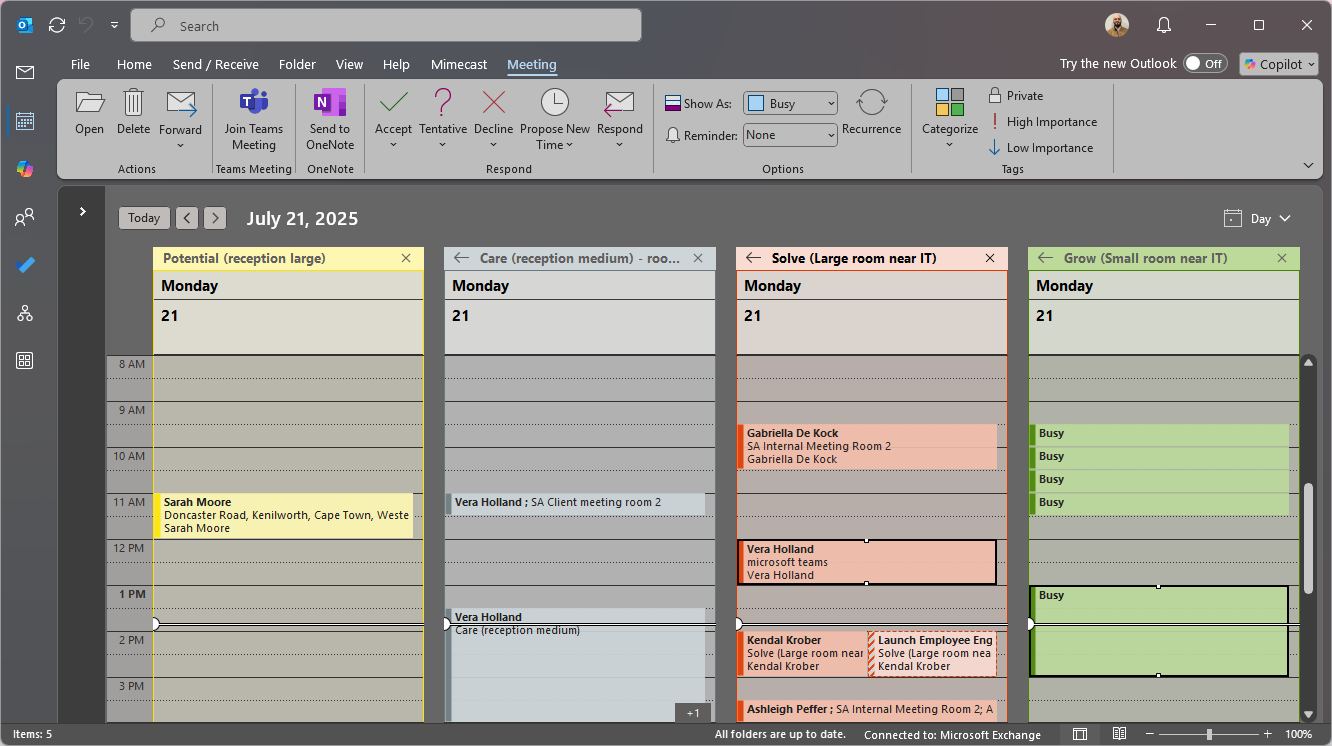
Room Booking
We have Assets called "Rooms", these Rooms have calendars, and the calendars can be booked for events/meetings.
Inside Outlook Calendar
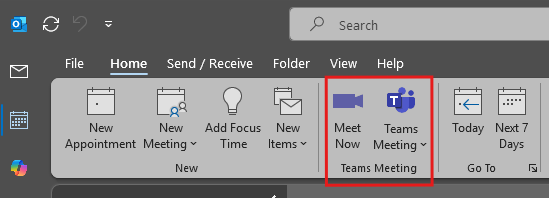
- Select new Teams Meeting
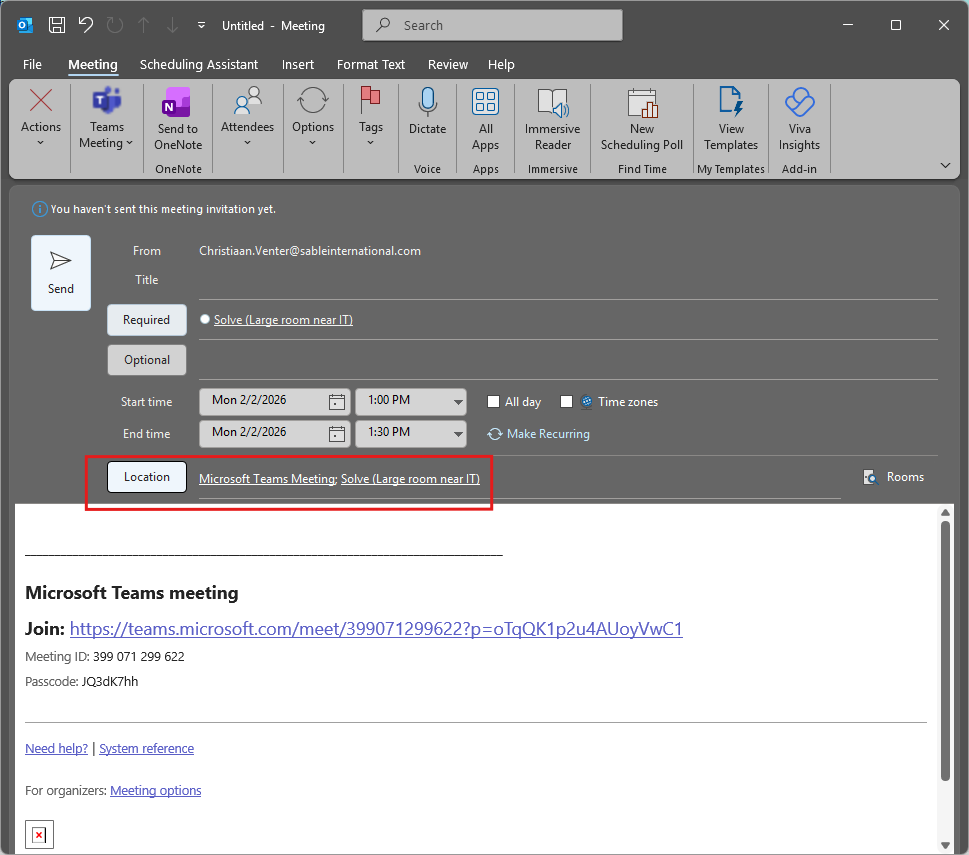
- Select "Location"
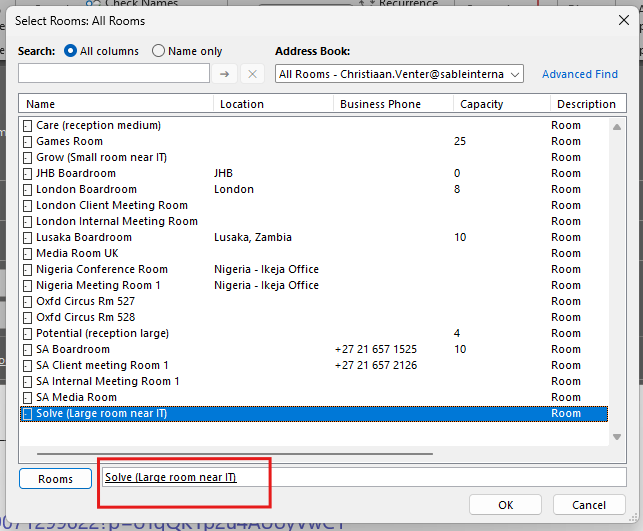
- Pick the room you want to use, double click it to fill the field at the bottom and select "OK"
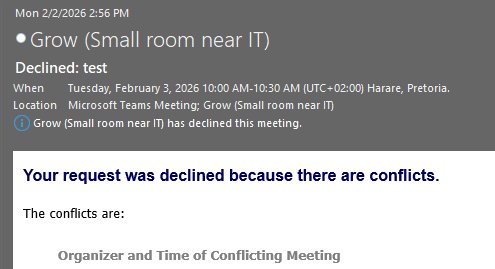
- If the time conflicts with an existing meeting, it will give a warning via email:
Was this article helpful?
That’s Great!
Thank you for your feedback
Sorry! We couldn't be helpful
Thank you for your feedback
Feedback sent
We appreciate your effort and will try to fix the article