Many staff at Sable International use more than one monitor for their workstations.
This is a quick guide on some special settings for changing your Monitor layout and how you interact with it.
*Every major change you do will give a prompt that expires after 15 seconds*
*This is a safeguard to revert to known good settings if something fails*
Keyboard Shortcuts
The common keyboard shortcuts for changing your display layout, is WIN+P
This starts a pop-up on the bottom right to change between PC Only, Second Screen Only, Duplicate, and Extend.
*You can hold down the WIN key and press P to change between settings.
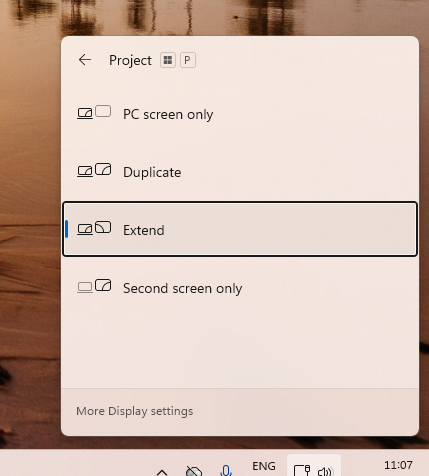
This useful when setting up a laptop with two or 3 displays.
Display settings
Additional settings are hidden here: Start > Settings > System > Display
(or right-click on any screen > Display Settings)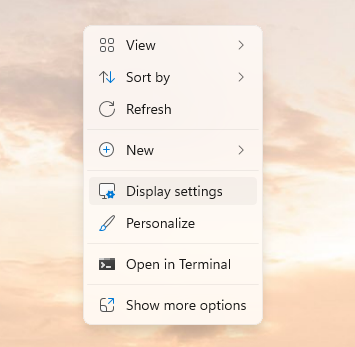
As pictured below, you can;
-Identify the displays (1, 2, 3....)
-Move displays between Left/Right/up/down
-Rotate the displays (is hidden further down in the settings screen)
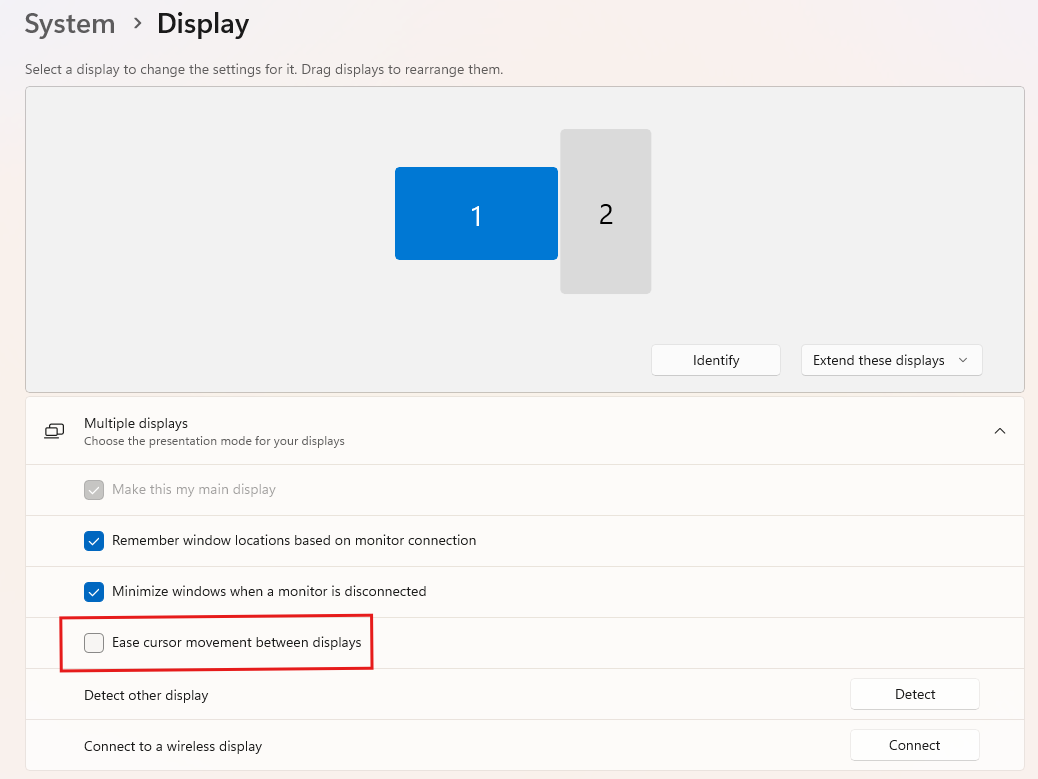
Highlighted in the above image: If you have monitors that are not aligned, or, rotated in the above picture, you can toggle the "Ease cursor movement between displays" toggle to prevent Windows from grabbing the mouse off one screen and smooth transition to the next.
This allows the cursor to "Bump" against the display edge.
Refresh Rate
The majority of monitors run at a frequency of 60Hz, or 60FPS (Frames Per Second).
Some newer monitors run at much higher refresh rate, 75, 100, 120, 140/144, 260, 300...
Scroll down to the Advanced Display Settings:
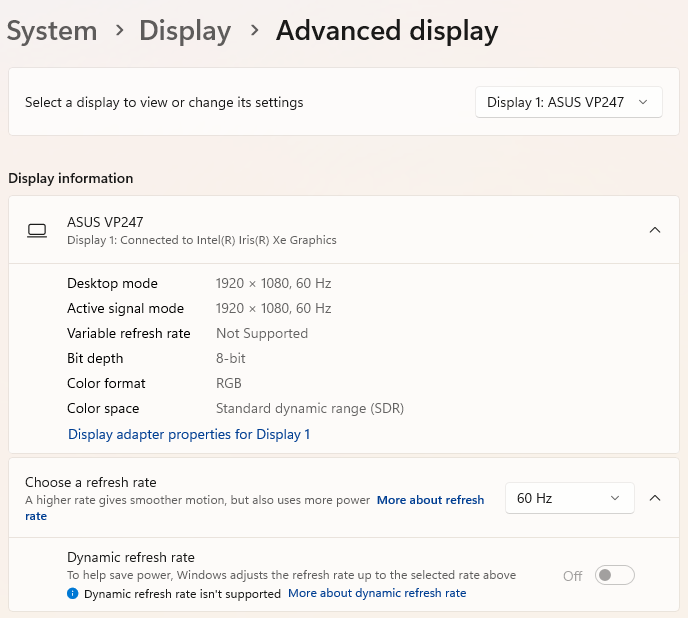
Select "Choose Refresh Rate:
Multiple options will be available.
If you select one, there will be a prompt to confirm, otherwise it will revert in 15 seconds.
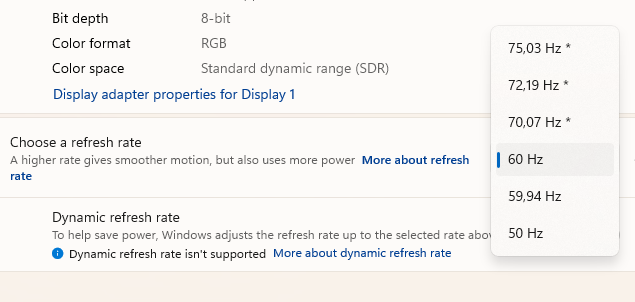
*This will need to be handled per-monitor.
While we try our best to have matching displays, this is not always possible and differences to happen.
Those with Laptops are most impacted by this mismatch.
Was this article helpful?
That’s Great!
Thank you for your feedback
Sorry! We couldn't be helpful
Thank you for your feedback
Feedback sent
We appreciate your effort and will try to fix the article